Below is a list of new/updated features and changes that impacted our online learning systems since 2020. This article focuses on our Canvas and Kaltura systems, but will also highlight other systems used by our online users such as Zoom.
2025 Updates
December 13, 2025
November 15, 2025
September 10, 2025
August 25, 2025
May 30, 2025
March 15, 2025
January 18, 2025
2024 Updates
2020-2023 Updates
- August 30, 2023
- August 10, 2023
- August 01, 2023
- June 17, 2023
- May 19, 2023
- March 24, 2023
- March 18, 2023
- January 04, 2023
- October 21, 2022
- October 21, 2022
- August 03, 2022
- April 23, 2022
-
October 16, 2021
- Sticky Navigation Menus (all users)
- Editable Submission Status Labels through SpeedGrader (instructors)
- Assignment Search Available in Gradebook (instructors)
- Course Notification Customization (all users)
- Microsoft Immersive Reader supports additional pages (all users)
- Accessibility Checker Available in Rich Content Editor (all users)
- September 14, 2021
- June 19, 2021
- April 21, 2021
- March 20, 2021
-
February 22, 2021
- Immersive Reader available for pages (instructors and students)
- View Ungraded as Zero (instructors)
- Visual improvements to HTML editor (instructors and students)
- Kaltura My Media shortcut available in User Account navigation (instructors and students)
- Zoom offers Machine-generated subtitles and transcripts option during live meeting
- New label on Kaltura player for machine-generated captions
- December 2020 (instructors)
- November 25, 2020 (instructors and students)
- September 19, 2020 (instructors and students)
- August 26, 2020 (instructors and students)
- July 27, 2020 (instructors)
2025 Updates
December 13, 2025
Scheduled Feedback
In the Gradebook, instructors can manage the visibility of grades and feedback for individual assignments. By default, scores and comments are released together, but instructors can schedule them to release separately.
Notes:
- When the release schedules are separated, comments must be released prior to grades.
- Preserving scheduled feedback release dates during course copy/import is not currently supported.
- If an instructor manually releases grades before the scheduled release time, the manual release takes precedence and the scheduled release is canceled.
This feature gives instructors greater flexibility and control over feedback timing, allowing them to align the release of rubric scores and comments with grading workflows, review sessions, or instructional pacing. It helps ensure students receive feedback when it is most meaningful and actionable.
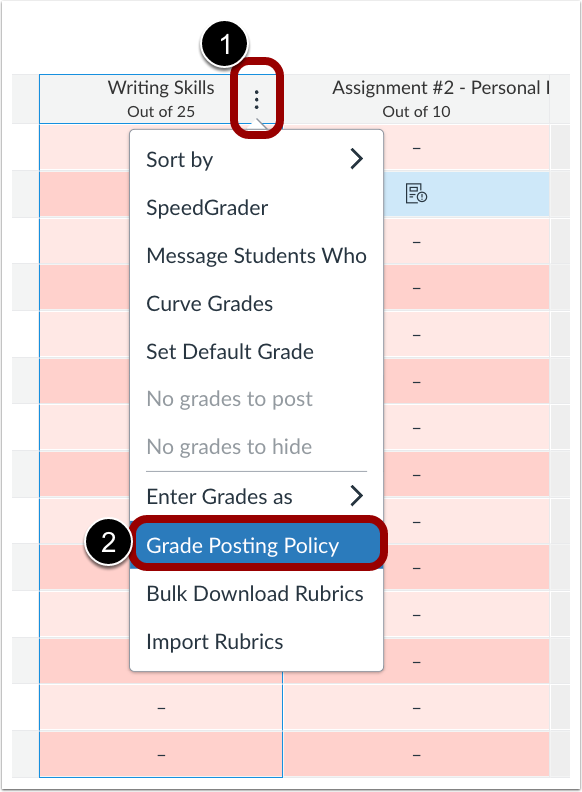
In the Gradebook, click the desired assignment Options [1], then click the Grade Posting Policy link [2].
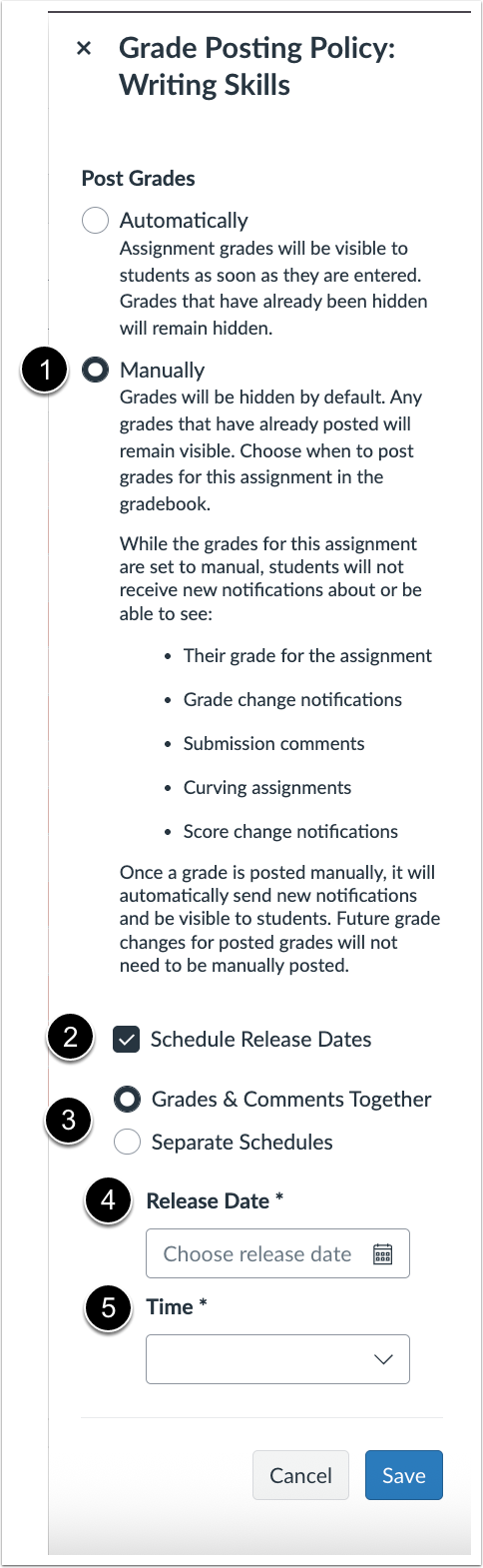
Click the Manually radio button [1], then select the Schedule Release Dates checkbox [2]. Choose whether to release Grades and Comments Together or on Separate Schedules [3], and set the Release Date [4] and Time [5].
November 15, 2025
Comment Library Filter
In SpeedGrader, a filter is added to the Comment Library. Instructors can filter by All Comments, Course Comments, or Assignment Comments.
These updates make it easier to organize, locate, and reuse feedback, helping instructors save time and focus more on supporting student learning rather than retyping comments.
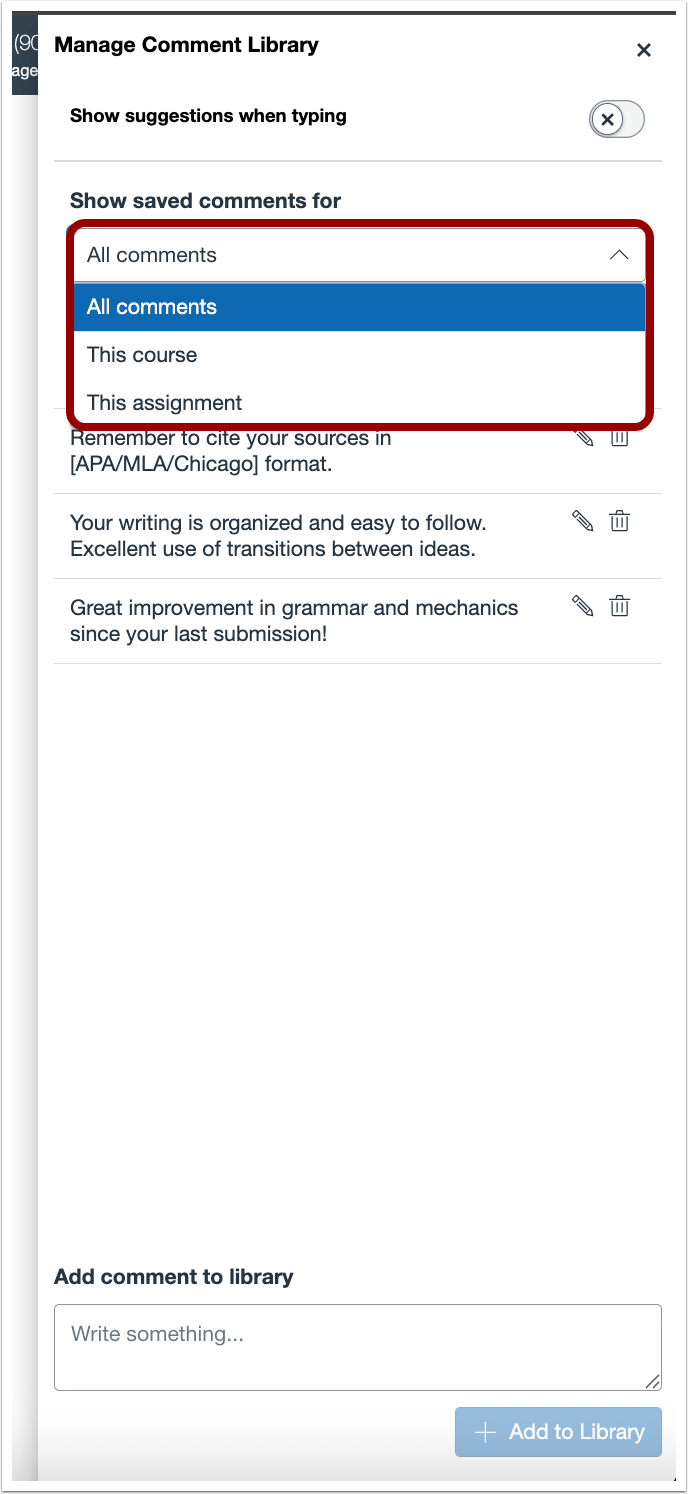
In the Manage Comment Library modal, click the Show saved comments for drop-down menu to filter comments.
September 10, 2025
Restrict Student Personal Access Token Creation
When enabled, users with only a student role cannot create tokens. However, if a user holds multiple roles, their access follows the highest level of permissions assigned. This update improves data security by allowing administrators to block student-only accounts from creating personal access tokens while still allowing users with higher-level roles to generate them when needed.
August 25, 2025
Redesigned Files Page
The Files page is redesigned. This update offers a cleaner, more intuitive interface that simplifies file organization and management. Improvements like pagination, sorting, and streamlined selection tools enhance usability, especially for users working with large file sets.
Feature Workflow
 Updated
Files Page
Updated
Files Page
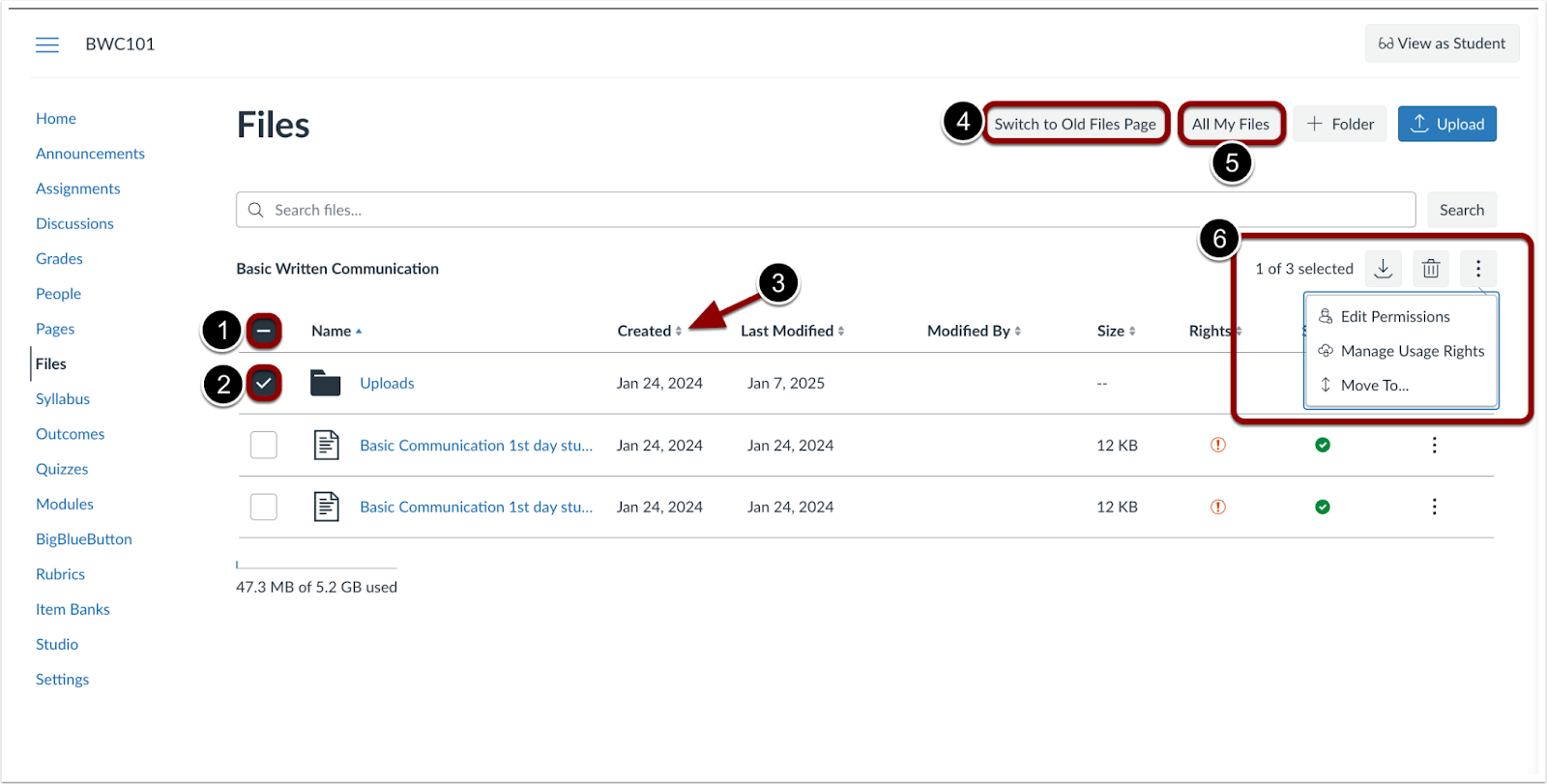
To select all files and folders at once, click the Select All checkbox [1]. To select files or folders individually, use the checkbox next to each file or folder[2]. Column headers can be clicked to sort files and folders [3]. To switch between the new and original Files page, click the Switch to Old/New Files Page button [4]. To view the files landing page, click the All My Files button [5]. Bulk action options are available when files and/or folders are selected [6].
Dyslexia Friendly Font
When the Use Dyslexia Friendly Font feature option is enabled in User Settings, the Canvas interface and the Rich Content Editor display text using the OpenDyslexic font by default. Note: OpenDyslexic font does not include Hebrew or Arabic characters. Additionally, if content is created using the Dyslexia Friendly Font, it will display in the default Canvas font for users who do not have the feature enabled.
This feature helps improve readability for users with dyslexia and supports a more inclusive learning experience. In User Settings, a Use dyslexia friendly font feature option displays in User Settings.

Click the Dyslexia-Friendly Font toggle to enable or disable font from the Account link in the Global Navigation menu.

When the Use Dyslexia friendly font is enabled, the Canvas interface displays OpenDyslexic font.
Resize Controls
The Rich Content Editor (RCE) includes a plus and minus icon to resize the editor. This update improves accessibility by adding icons that let users easily resize the editor, providing an alternative to the previous drag-to-resize option.

Use the plus and minus icons to resize the RCE.
May 30, 2025
Permalink for Discussion Entries
In Discussions, each reply includes a copyable permalink allowing users to share a direct link to that specific reply. If the reply is part of a thread, the thread will expand to reveal it. This update makes it easier to navigate and reference specific replies in a discussion.

Click the Options [1] icon, then select the Copy Link [2] option to copy the permanent link.
March 15, 2025
Discussions default view
When creating or editing a discussion, instructors can configure the default view settings, including thread collapse/expansion and sorting options for students, with the ability to lock these preferences if needed.
This feature allows instructors to structure discussions in a way that aligns with their teaching approach, guiding student engagement and interaction.
January 18, 2025
Multiple Due Dates for Discussions
When the Discussion Checkpoints feature option is enabled, instructors can set multiple due dates or checkpoints for graded discussions to accommodate different stages of the discussion process, such as the initial post and follow-up replies.
View Multiple Due Dates for Discussions for more information.
2024 Updates
November 20, 2024
Save Threaded Visibility Preferences
When expanding and collapsing a discussion thread, the selected visibility preference is automatically saved for that specific discussion. This update enhances user convenience by automatically saving the visibility preferences for specific discussion threads.
October 23, 2024
Announcements Timestamp
On the Timestamps for Announcements, the Created date is not visible to students and the Last edited date is only visible if the edit happened after publishing. Additionally, the Posted date now shows the date when the announcement became available. This update helps prevent students from misunderstanding the Posted and Last edited date.
Teacher view
Student view
Edit button added to Discussions Index Page
On the Discussions Index page, the edit button has been added to the kebab menu. This update allows users to navigate to the edit page directly from the Discussions index page.
September 23, 2024
Disallow Threaded Replies
In Discussions, instructors can disallow threaded replies. This update enables instructors to restrict threaded replies, a feature that was available in legacy discussions. On the Discussion Edit page, instructors can select the Disallow threaded replies checkbox. Note: Once there are threaded replies in a discussion, this setting can no longer be changed.
Line Separation Between Posts
In Discussions, a line is added to provide separation between replies. This update makes it easier to distinguish between replies.
Message Student Who Updates
In the Gradebook, the default option for Message Students Who is changed to Have not yet submitted. Additionally, the Message Students Who options in the Totals column have updated text. This update follows grammar rules and improves the user workflow by setting the most commonly used option as the default.
Rich Content Editor Features Available in Speedgrader
In SpeedGrader, certain Rich Content Editor (RCE) features are available when commenting. Additionally, instructors can edit comment drafts. The available RCE features include:
- Heading
- Bold
- Italic
- Underline
- Font color
- Insert Hyperlink
- Bullets
Note: Instructors and students can view formatted comments in all locations where comments are accessible.
This change allows instructors to provide more detailed and formatted feedback to students by emphasizing key points, organizing information clearly, and including external resources directly in their comments. This enhanced feedback improves communication, making it easier for students to understand the feedback and take action on it.
To continue editing a comment draft, click the Edit icon [1]. The saved content will then be reloaded into the Rich Content Editor for further editing [2].
Limiting Access Token Generation
We will limit the generation of access tokens within Canvas, This feature benefits users by enhancing security and control over access tokens. By limiting token generation, it reduces the risk of unauthorized token creation, helping to prevent potential misuse or security breaches.
July 20, 2024
Ungraded Discussions Assign To
In Discussions, instructors can assign ungraded discussions to students and sections. Additionally, section restricted enrollments allowing students to post discussions to a specific section is removed. Instructors can still create groups, and students within those groups can initiate discussions that are visible only to their group members.
Module and Assignment Differentiation
On the Modules page, instructors can assign students to an entire module and individual module items from the Modules page. Additionally, the Add Module and Edit Module Settings pages are redesigned as trays.
Notes:
- If a student is assigned only a specific item within a module and not the entire module, they will see only that item in the feature area, such as an assignment on the assignment page, and not the rest of the module.
- If a student is assigned an entire module, but only specific items within that module, students can only view the items they are assigned.
Notifications for Changed Content in Announcements
In Announcements, instructors can notify students when an announcement has been updated.
July 17, 2024
Comment Drafts
In SpeedGrader, after drafting a comment and moving on to another student, a Draft pill displays indicating that the comment has not been submitted.
This update enhances the user experience by clearly indicating when a comment has not yet been submitted.
Discussion Summaries
Discussion Summary is a new feature preview available in Canvas. Discussion Summarization uses a Generative AI model to give instructors summaries of the main points, questions, and ideas in a discussion thread.
Smart Search
Smart Search is a new feature using advanced AI and semantic algorithms. The Smart Search feature understands the context of queries, providing more accurate and relevant results without needing complex search operators or tools. Currently, the Smart Search feature is querying the following items within a course:
- Content pages
- Announcements
- Discussion prompts
- Assignment descriptions
July 03, 2024
Mark All As Read Button in Announcements
In Announcements, a Mark all as read button is available.
Instructure View Announcements Mark All as Read

For Instructors, a Mark all as read button is available.
Student View Announcements Mark All as Read Button

Available Until in Announcements
In Announcements, the delayed posting field is changed to Available from and instructors can add Until dates. This update enables instructors to specify a date when the announcement will no longer be visible to students.
June 18, 2024
Sort Course List
In the Courses page, users can sort courses. Additionally, a Favorite header text is added.
June 05, 2024
Randomize within Submission Status Sorting in SpeedGrader
In SpeedGrader Settings, instructors can randomize the order of students within submission status.
This update helps prevent grading fatigue and biases when assessing students by sorting randomly. Additionally, it provides grading efficiency by randomly sorting within submission status.
When the randomized students option is selected, the preference is saved as the default in the browser for the course. When logging in on another device, instructors must select the sort by options again.
May 22, 2024
Randomize Student Sort by List
In SpeedGrader Settings, instructors can randomize the order of students. This update improves prevention of grading fatigue and biases when grading students. In the SpeedGrader Settings, in the Sort student list field, select the randomize students option.
When the randomized students option is selected, the preference is saved as the default in the browser for the course. When logging in on another device, instructors must select the sort by options again.

May 18, 2024
Message Students Who Have Submitted Updates
For students who have not submitted, the Message Students Who feature in the Gradebook is updated to include a checkbox allowing instructors to exclude excused students from the message. These updates help instructors streamline the process of excluding excused students from messages about missing assignments, making the workflow quicker and more efficient.
Message Students Who Have Not Submitted Updates
In the Gradebook, the Message Students Who feature is enhanced to allow instructors to message students who have submitted an assignment. Options include messaging all students who have submitted on time, students with graded on time assignments, and students with ungraded on time assignments.
These updates help instructors provide positive reinforcement to students who have submitted their work and streamline the process of excluding excused students from messages about missing assignments, making the workflow quicker and more efficient.

Find and Replace Plugin
In the Rich Content Editor allows for efficient data extraction, transformation, and manipulation.
In the Rich Content Editor, click the Tools drop-down menu [1], then select the Find and Replace link [2]. Additionally, the keyboard shortcut is command+F for Mac and control+F for Windows.
March 18, 2024
Discussions Redesign for Instructors
In preparation for Canvas enforcing Discussions Redesign prior to the Summer 2024 quarter, instructors will be able to enable Discussions Redesign in their course to familiarize themselves and their students to the new interface. Read Discussions Redesign for Instructors for more information.
Multi-Select Gradebook Filters
In the Gradebook, instructors can choose multiple filter options for each filter type.
January 31, 2024
Unpublish Module Only
In Modules, instructors have the option to unpublish a module only. This option is available in the Publish All drop-down menu and individual module drop-down menus.
This functionality allows instructors to unpublish the module while leaving items within the module still published.
2020-2023 Updates
August 30, 2023
Apple iWork file preview in Canvas’s DocViewer
When a user in the United States uploads an iWork file (.pages, .numbers, and .key) to Canvas using a Canvas iOS app or the web, uploaded files are able to be previewed in the DocViewer. This update allows students to submit iWork files. Instructors can view and annotate the files in SpeedGrader as well as create Student Annotation assignments using an iWork file.
August 10, 2023
Kaltura Recycle Bin
Kaltura now gives users the ability to utilize a Recycle Bin when deleting media. The Recycle Bin feature allows you to delete entries with an option to restore them later. Not only will the item be restored it to its rightful place, but its original name, tags, details, metadata and functionality will also be restored.
Kaltura My Analytics
Now can easily see the analytics of all the videos you've created in Kaltura with My Analytics. The My Analytics dashboard enables you to discover how your users engage with a specific entry so you can track and optimize your content. The dashboard can be used to explore engagement in different time periods as well as compare different periods. You can also filter based on a variety of parameters.
The data is identical to the information when you view Kaltura Media Analytics.
August 01, 2023
Enhanced gradebook filters
Enhanced Gradebook Filters allows you to select and manage filter types
used
in a gradebook filter and enable or disable a filter. A filter may be
used once
or saved for future use. View
How to use Enhanced Gradebook FIlters
for more information.

June 17, 2023
Bulk publish and unpublish module items
In Modules, instructors can bulk publish all modules or individual modules. Instructors have the option to publish all modules and items, publish all modules only, or unpublish all modules and items. Additionally, the publish icon on individual modules is updated to include a Module status menu. This menu includes the options to publish module and all items, publish module only or unpublish module and all items for individual modules.
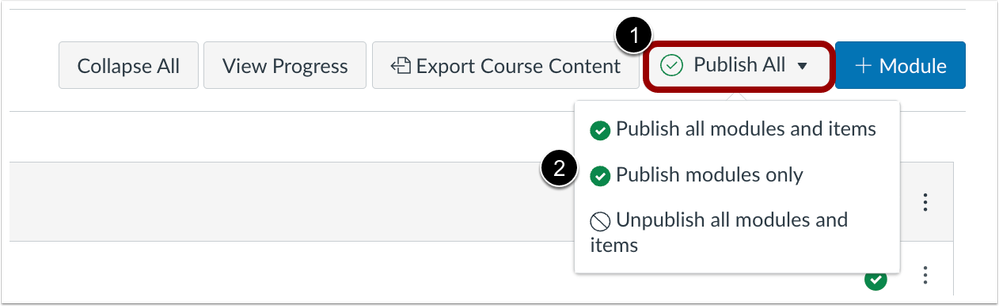

View How to Publish a Module for more information.
May 19, 2023
My Media (Kaltura) now available in global navigation
We've added My Media (Kaltura) to the global navigation menu of Canvas to make it easier to access your content. You will need to log in to Canvas first in order to see the icon, otherwise this link will not be available to you.
March 24, 2023
Kaltura video embeds improved
The default embed size when you deploy Kaltura media has been resized to better allow viewing of the media and transcript (if applicable).
Before
After
March 18, 2023
Submit Assignment on Behalf of Student
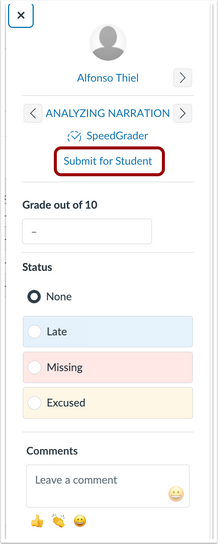
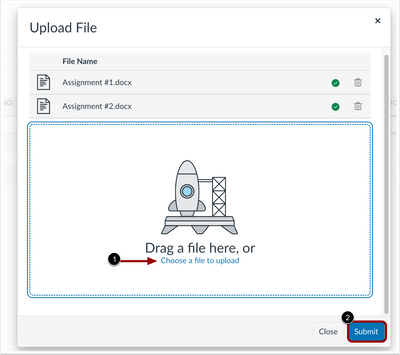
Instructors can submit a file upload assignment on behalf of a student in the Gradebook. The submission includes the timestamp and who submitted the assignment. Additionally, the instructor can submit multiple files at a time for a single student and submit beyond the availability date. This allows instructors to support students in situations that need an alternative means of submission. Also, instructors can include evidence captured in a live setting through file uploads.
Please note, Instructors can only submit to assignments on behalf of students when File Upload is one of the available submission types. Please view Submit assignment on behalf of a student for more information.
January 04, 2023
Student Feedback Visibility Update
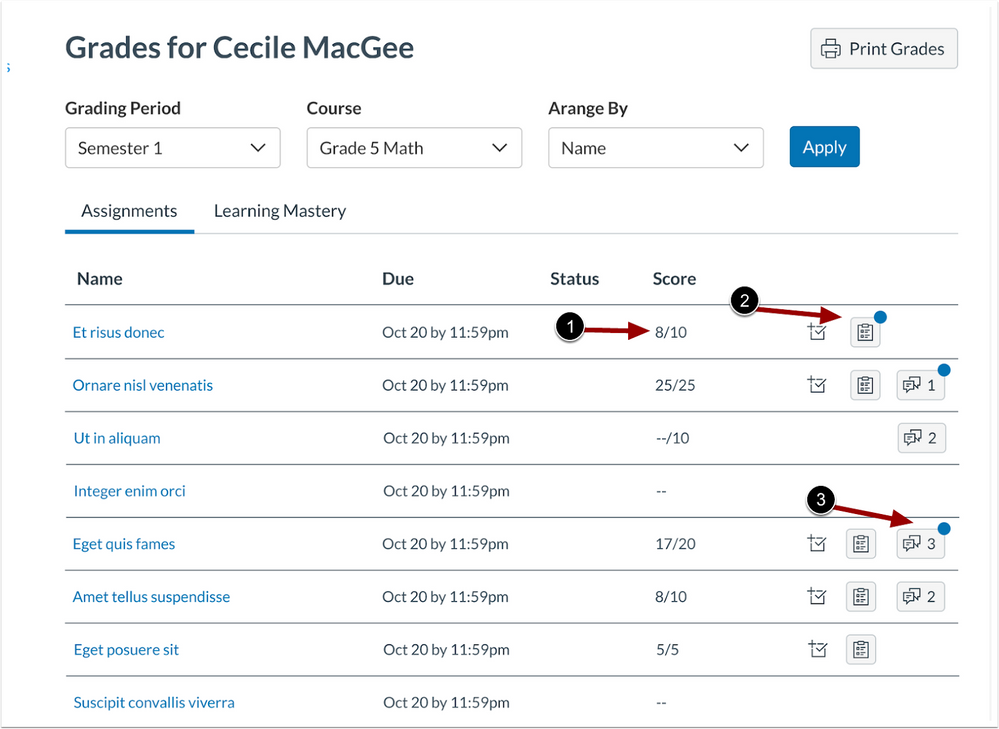
In the Grades page, the score column has been updated to display the score and total score in a single column [1]. When a new comment is added to a rubric, an indicator (blue dot) displays on the rubric button [2]. Additionally, when a new comment is added to an assignment an indicator and the number of comments displays on the feedback button [3].
Comment Pop-Out Tray
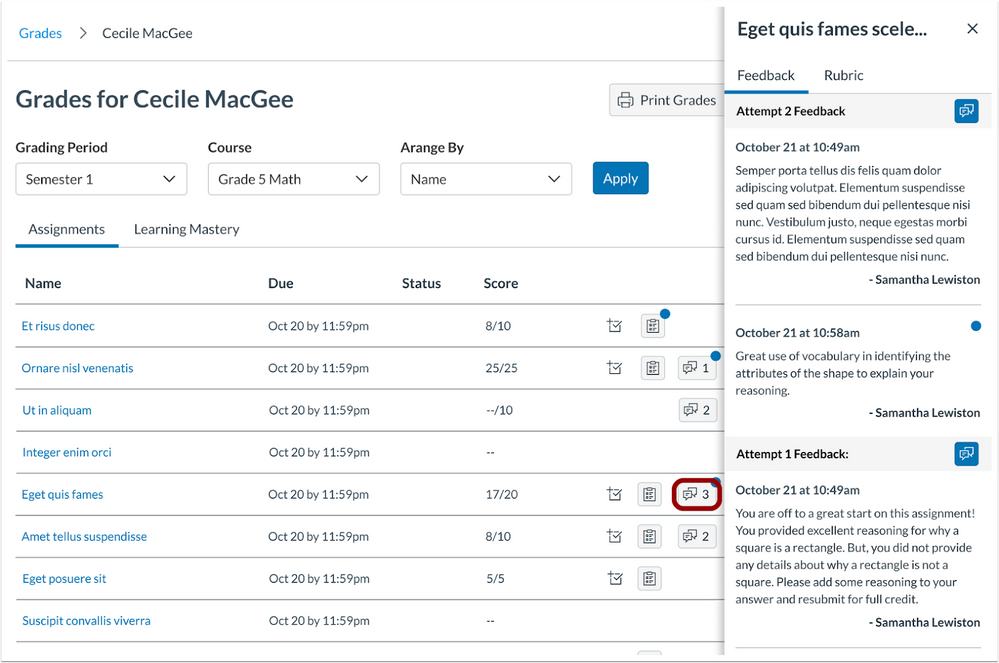
To view feedback, click the ViewFeedback button to display comments in a pop-out tray.
Word Count Status Bar Modal

To view a detailed word count in the Rich Content Editor from the status bar click the Word Count.
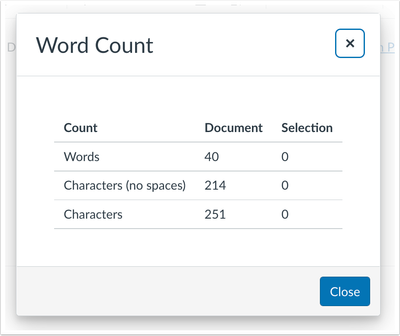
The Word Count modal in the status bar displays the same modal as the Word Count in the Toolbar.
Single Click Toolbar Buttons
In the Rich Content Editor (RCE), the following toolbar buttons have been updated to open the menu with a single click:
- Superscript
- Links
- Images
- Record/Upload Media
- Documents
- Icon Maker Icons
- Align
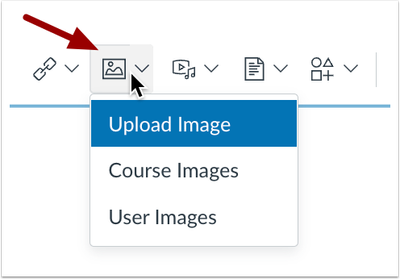
In the Rich Content Editor, the toolbar buttons display the menu with a single click. Previously, these buttons were split to include a quick action feature which has been removed.
Missing Status Keyboard Shortcut
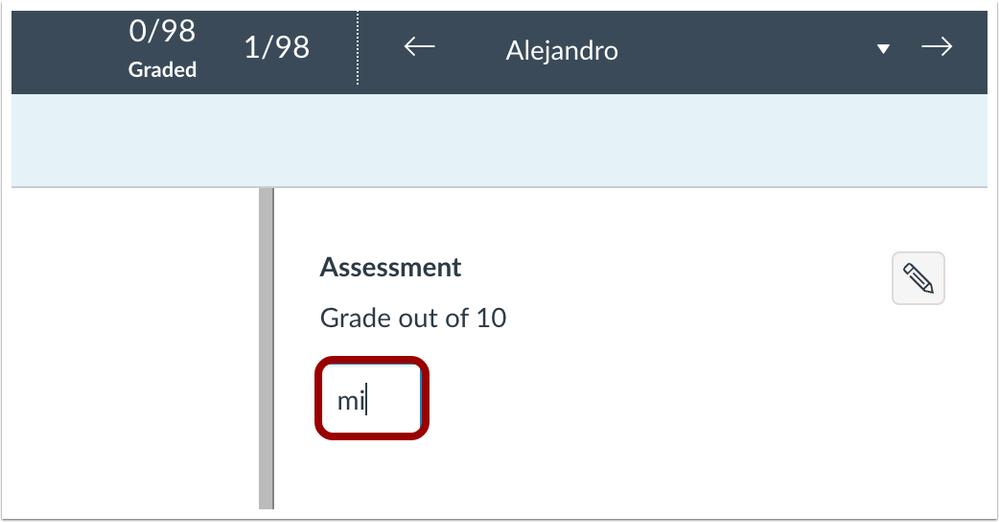
In the Gradebook and SpeedGrader, the missing status of an assignment can be added by entering MI or mi in the assignment cell. Additionally in Gradebook Settings, when the Automatically apply grade for missing submissions setting is enabled, entering MI or mi applies the set grade.
In the Gradebook, entering MI or mi updates the status of an assignment to Missing.
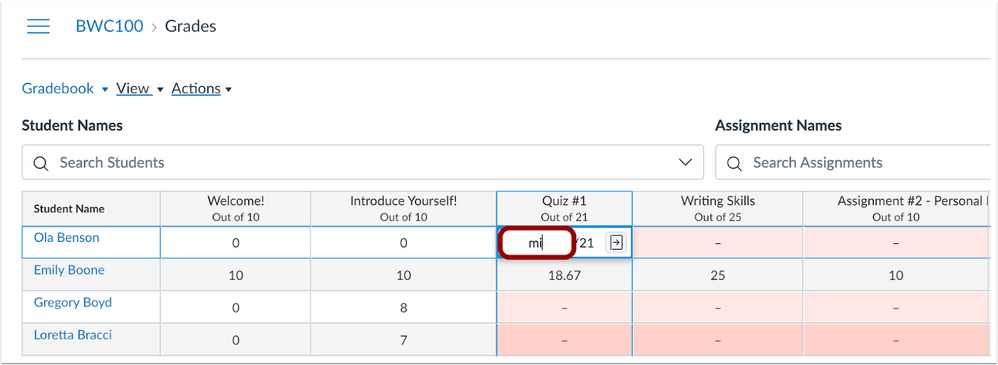
In SpeedGrader, to update an assignment’s status to Missing, enter MI or mi and press enter or click in another area of the page.
Printing Individual Assignment Feedback Comments
Individual Assignment Comment Print View
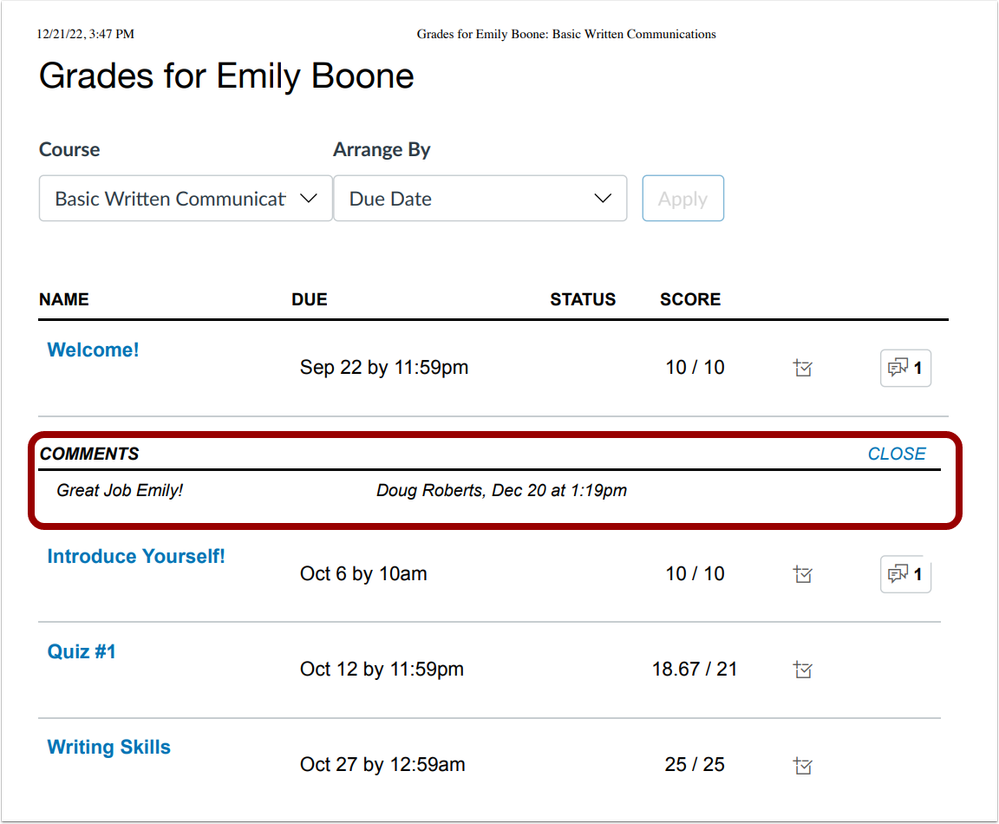
When printing, individual assignment comments display below assignment details. Previously when printing individual assignment comments, the comment tray displayed and hid assignment details.
October 21, 2022
Schedule Page Publication (Instructors)
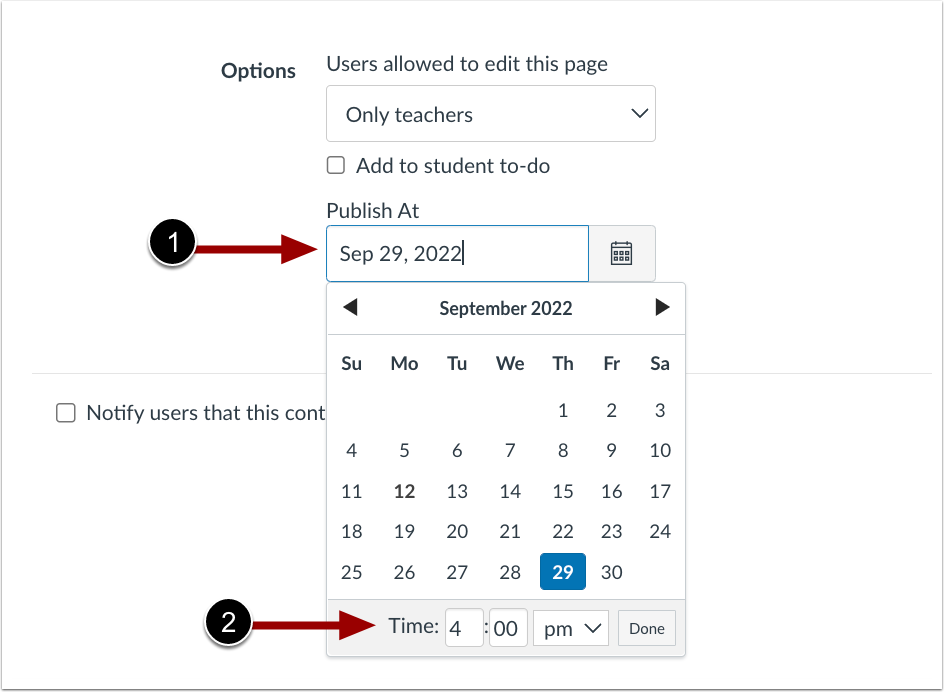
Instructors can now prepare and schedule pages in advance to automatically
publish
in a course. When editing a page, select a
Publish At date [1] and
enter
a Time [2], then click
Save.
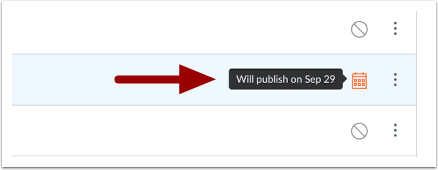
In Modules and Pages, instructors can view when a page is scheduled to publish.
August 03, 2022
Assignment Availability Window Display Update (students)
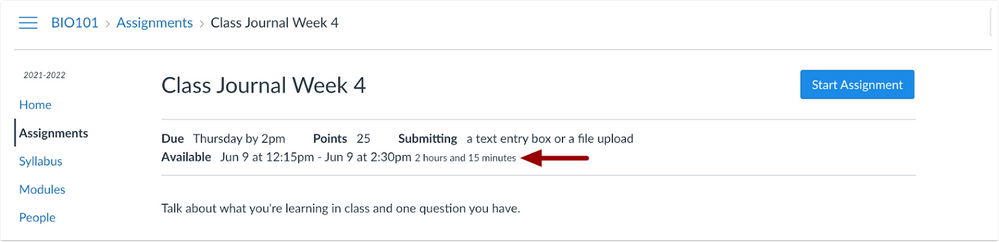
In Assignments, when an availability window is less than 24 hours, students can view the total assignment availability window in hours and minutes.
Calendar Event Title Tooltip
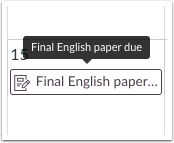
When hovering over the calendar event, the tooltip displays the full event title.
Individual Student Due Date Override (instructors)
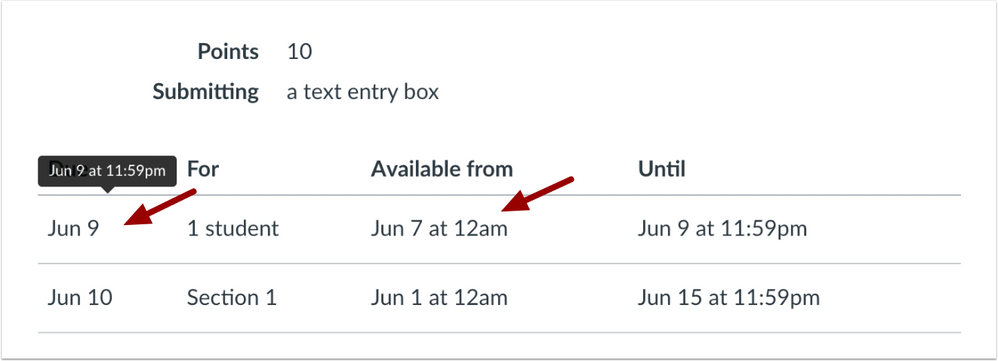
Previously, if a student was given an individual assignment override that was within the date range for a section specific override, Canvas used the most lenient assigned dates to determine the assignment availability and due date for the student.

Filtered View CSV File Download (instructors)
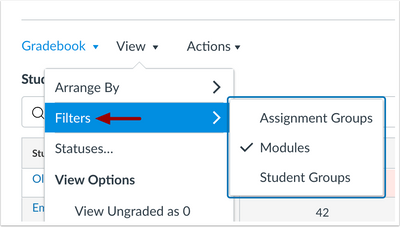
This update allows instructors to download CSV files with the current filters selected in the Gradebook.

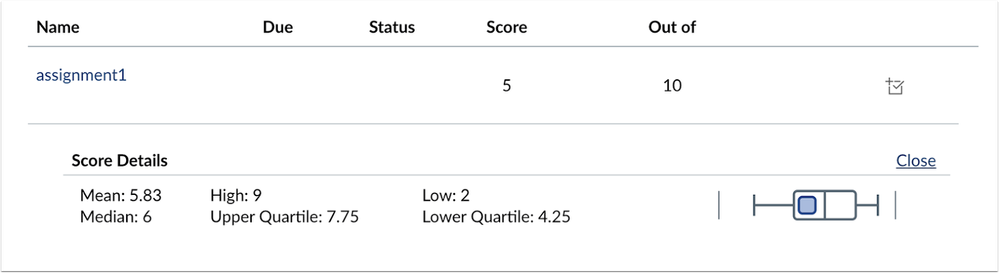
Distribution Graph Statistics Update
When viewing the distribution graph for an assignment, the median and upper/lower grade quartiles and the mean, high, and low scores display for students in the Grades page.
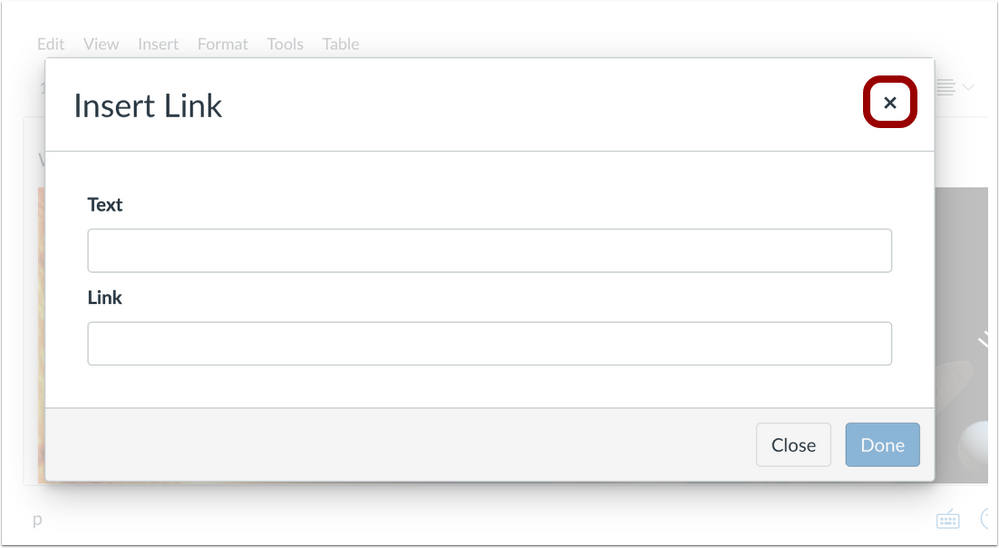
Action Required for Modal Exit
In the Rich Content Editor, modals remain open until the cancel (x) button is clicked or the ESC key on a keyboard is pressed. This update prevents users from accidentally closing a modal and losing work in progress.
Rubric Unsaved Changes Warning (instructors)
When scoring a rubric in Speedgrader, a browser warning displays when exiting Speedgrader before saving changes.

April 23, 2022
Apply score to ungraded submissions (instructors)
In the Grades area within a Canvas course, instructors now have the option
to
apply a score to all ungraded assignments within a specific assignment
group
or for the total grade book in one batch.
For full details about this feature option, please see Apply Score to Ungraded Assignments.
Default due date time on course level (instructors)
When an instructor sets due dates on course assignments they can specify a time. The system default time is 11:59pm. If you would like this time you be different, you can edit it on the individual assignment or you now have the option to set your own default due date time on your course.
To update the due date time in a course enter you course and go to Settings. Scroll down to the Default due time field and enter the time you prefer.
Please note, the Assignment Default Due time will not update existing assignments with due dates already set.
Icon maker in rich content editor (instructors)
This change provides instructors the ability to create simple and reusable icons in their courses without using an external tool. The Icon Maker allows basic customized iconography to be created directly within the Rich Content Editor including text within shapes that also be turned into web or course links.
Please read our Using the Icon Maker in Canvas article for directions.
October 16, 2021
Sticky Navigation Menus (all users)
The Account, Course, and User Navigation Menus remain sticky and are always visible on their respective pages. This change allows users to access the menus at any time.
When a long page scrolls down on a page, the respective menu is retained in the sidebar. If the navigation menu is longer than the height of the screen, the menu can also be scrolled to view all menu links.
Editable Submission Status Labels through SpeedGrader (instructors)
Instructors are now able to edit submission status labels in SpeedGrader. The SpeedGrader sidebar includes an Edit icon to be used for submission statuses. Statuses can be edited the same way as in the Gradebook. Additionally, adjusting a status in SpeedGrader also applies to the Gradebook.
For more information, view Submission Status Label Edits.
Assignment Search Available in Gradebook (instructors)
The Gradebook includes an Assignment Names search field, in addition to the already existing search for student names. The Gradebook includes two search fields: one for student names, and one for assignment names. Using the Assignment search field displays any search results that match an assignment in the course.

Course Notification Customization available in User Notification Settings (all users)
Users are now able to modify course notifications without having to access the course-level Notifications page for each course. However, if a user has any active course enrollments, the menu displays the name of each course. Users can navigate between their courses and set specific notification options for each course, if preferred. Any updated notifications also sync to the course-level Notifications page.
Microsoft Immersive Reader supports additional pages (all users)
Microsoft Immersive Reader now supports individual Assignments, the Course Home Page, and the Syllabus.
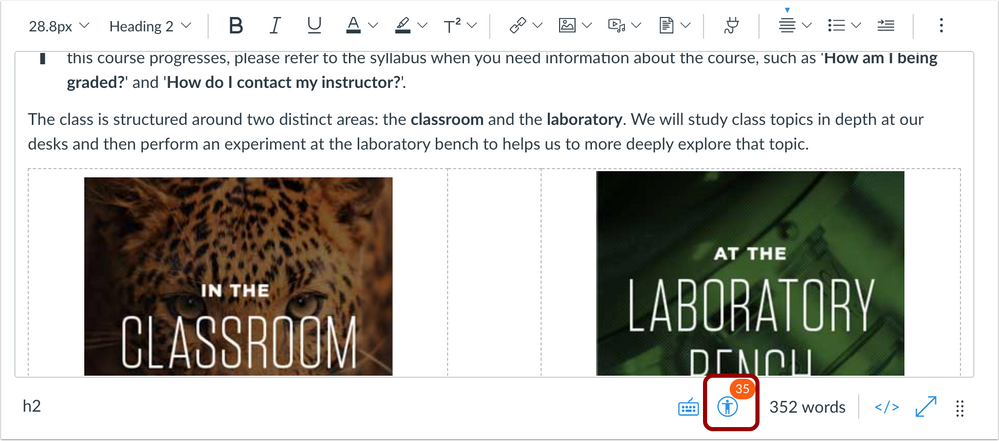
Accessibility Checker Available in Rich Content Editor (all users)
The Accessibility Checker shows content creators when accessibility concerns are detected without needing to open the Accessibility Checker. When the Accessibility Checker Notification is enabled for a course, any accessibility issues detected within the Rich Content Editor display an indicator.
For more information, view How to use the Accessibility Checker in the Rich Content Editor?
September 14, 2021
Easier access to My Media (all users)
To streamline access to your Kaltura media, we've added a navigation menu item to your User Account Menu in Canvas. If you're an instructor, we removed the My Media course menu item since this is more accessible from anywhere in Canvas.
June 19, 2021
Comment library (instructors)
Instructors now have the ability to reuse common text for comments/feedback on student assignment submissions. Please see How do I use the Comment Library in SpeedGrader? for more information.

April 21, 2021
Term or course dates displayed in settings (instructors)
Within the settings for your course, Canvas now displays the term or course dates that your content may be associated with. This only affects display purposes, as UC San Diego Extended Studies programs student access on the individual student, not on the course level, so these dates do not impact anything within your course. Read Why are the dates wrong in my Canvas course? for more information.
New link to Canvas-generated help guides
Within the Help menu in Canvas, users now have access to a link for Canvas-generated guides and tutorials. You may find this useful if you are unable to find information from UC San Diego Extended Studies help center. Please note, some aspects of the interface or tools may be different as the Canvas-generated content applies to a generic instance, which may or may not have the same look or features that UC San Diego Extended Studies uses.
Form to request third party app/integration installation (Instructor and Staff)
Program managers and instructors may now initiate a request for Online Learning to evaluate a third party tool/integration within Canvas. Due to privacy and troubleshooting concerns, we will need to determine whether the tool that you request applies the UC San Diego privacy policy, protects student data, and benefits the overall instructor and student experience. To learn more about supported tool integrations and submit an evaluation request please visit Third Party Tools and Canvas Integrations.
Once you submit the form, we will provide a response within 30 days and follow up with you once we have made our decision and next steps.
Machine-generated captions enabled for Kaltura media created prior to 11/20/20
UC San Diego Extended Studies is continuously improving our accessibility capabilities to better serve the diverse needs of our students. To increase accessibility and enhance the student experience within Canvas, we have enabled machine-generated captions for all uploaded course media. These machine-generated captions are editable and we encourage you to review and refine: How to Edit Machine Generated Captions.
Note: Media uploaded to Kaltura after November 25th, 2020 will already have machine-generated captions added as a default behavior without any additional steps or notifications.
March 20, 2021
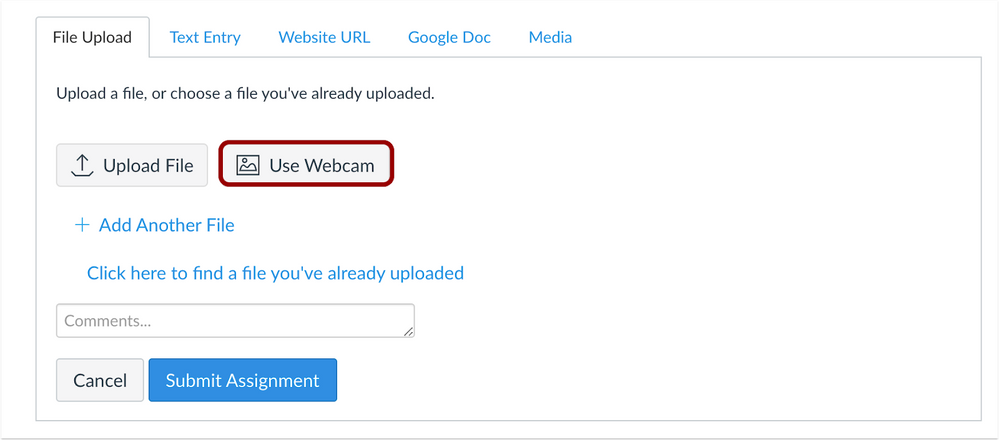
Webcam Submissions (students)
For File Upload assignments, students may now use their webcam to take a photo and then upload for their submission.
File Preview Enhancements (all users)
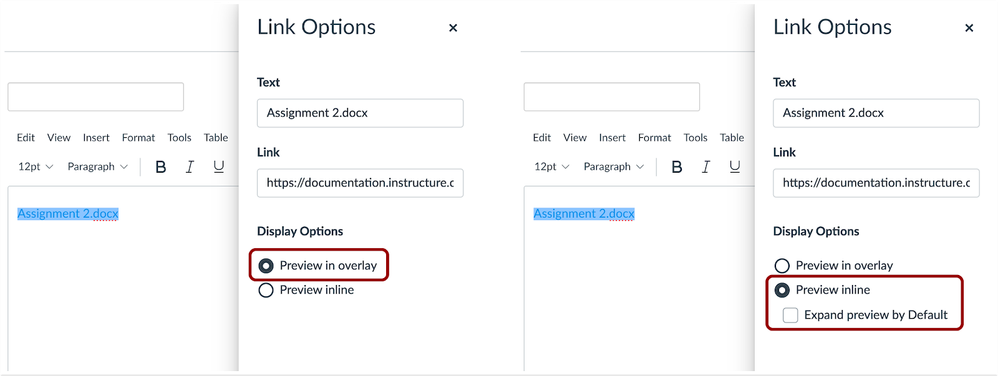
Files linked in the Rich Content Editor can be previewed in an overlay or inline. Users now have the ability to control the display of the file preview. Previously all file previews opened in a new browser tab.
Users who link a file can open the File Options menu and indicate a preview type:
- Preview in overlay displays the existing file preview functionality, where the file preview opens and overlays the entire page.
- Preview inline loads the displays the preview directly in the Rich Content Editor window once the file is clicked. If the option to expand the preview by default is also selected as an option, the file is automatically expanded in the page and the user does not need to click the file to view it. Instead, the user can close the preview by clicking the Minimize Preview link that displays along with the image.
Submission Reassignments (instructors)
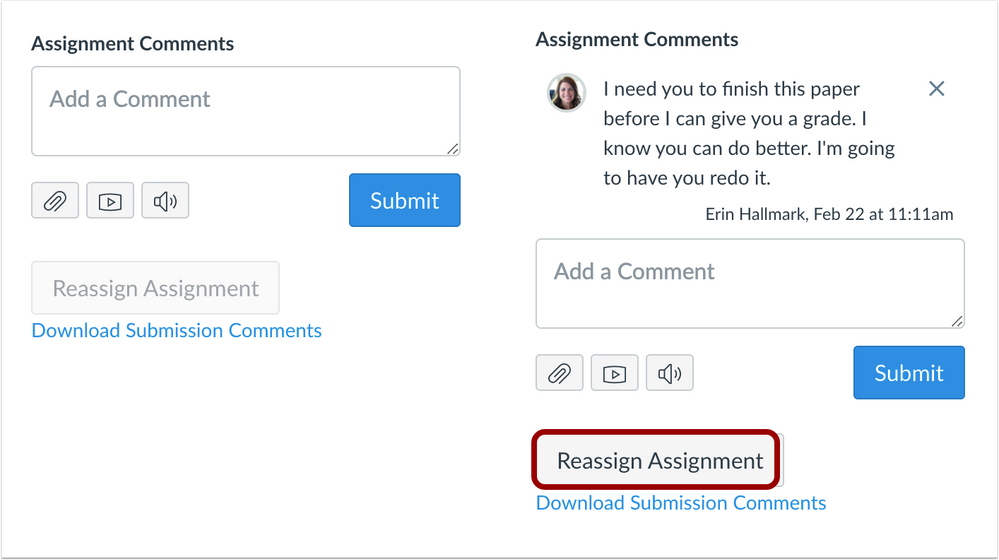
In SpeedGrader, instructors can reassign an assignment with a due date to an individual student and ask them to redo their submission.
For online assignments that allow multiple attempts and have a due date, instructors can view a Reassign button in SpeedGrader. If they require a student to redo an assignment, they can reassign the assignment directly to the student from within their grading workflow in SpeedGrader. The instructor must first provide feedback regarding the assignment, which will enable the button. The reassignment does not change the original due date for the student.
Notes:
- The Reassign Assignment button is not available for External Tools (LTI), on paper, and no submission assignments.
- The Reassign Assignment button is only available for assignments with due dates.
- If an instructor returns to SpeedGrader after navigating away from the page, the Reassign Assignment button shows that the assignment has been reassigned.
- If the assignment's settings do not allow students to make an additional attempt, the Reassign Assignment shows that the assignment is not able to be reassigned.
February 22, 2021
Immersive Reader available for pages (instructors and students)
To improve accessibility, users now have the ability to use the built-in Immersive Reader on pages. The Immersive Reader offers additional tools and options to enhance your reading experience.
Please note, this is only available on content within pages only and is not currently available for other types of content (e.g., Assignments, Discussions, etc.). For more information, please view:
- How do I use the Microsoft Immersive Reader when viewing a page as a student?
- How do I use the Microsoft Immersive Reader when viewing a page as an instructor?
View Ungraded as Zero (instructors)
Instructors now have the ability to view unsubmitted or ungraded student submissions in the total column with a score of 0. This is a visual change in identifying grading calculations for ungraded assignments and does not actually affect any grades.
The View menu includes the View Ungraded as 0 option, which allows instructors to view student grades as if all ungraded assignments were worth zero points.
Please view How to View Ungraded as Zero for more information.
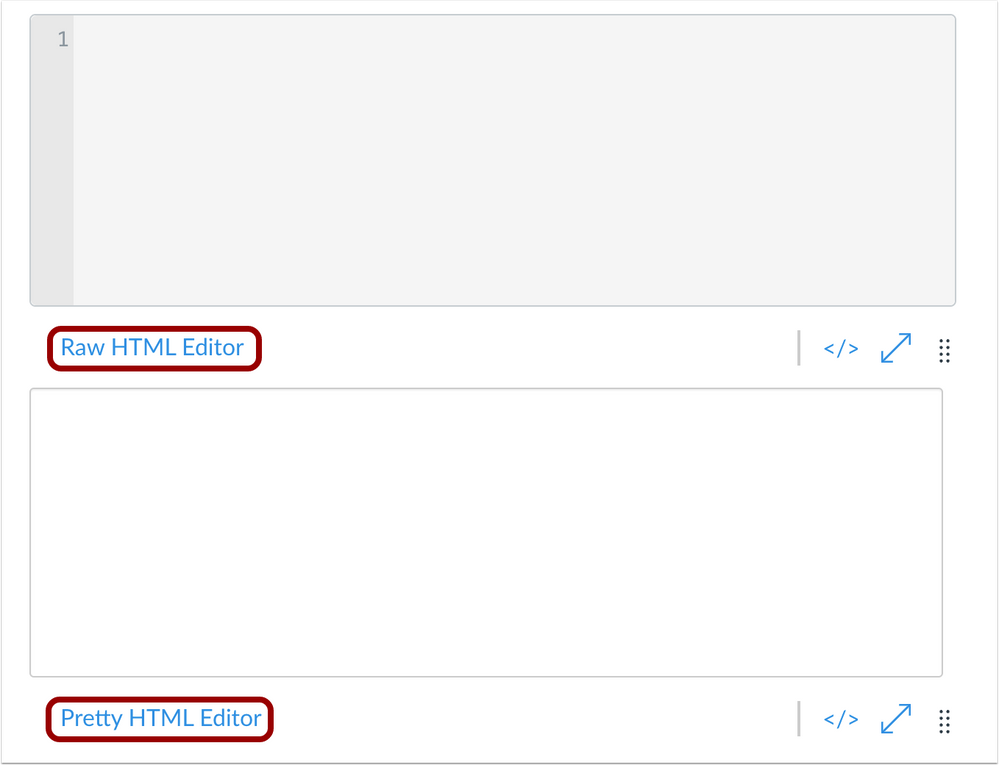
Visual improvements to HTML editor (instructors and students)
Within the rich content editor, when you click on the HTML editor icon, users now have the option to toggle between a visually improved version of the HTML (Pretty HTML Editor)and the previous version of the HTML (Raw HTML Editor). Please note, only the Raw HTML Editor is currently accessible to screen reader users.

Kaltura My Media shortcut available in User Account navigation (instructors and students)
Users now have the ability to access their Kaltura My Media through the User Account navigation menu. This reduces the need to access My Media through the Rich Content Editor or through a Course Navigation menu.
New label on Kaltura player for machine-generated captions
There is a new label on the caption drop-down indicating machine-generated captions by English (auto-generated). This change will be applied to videos uploaded after 2/22/21. Previously uploaded files with machine-generated captions will continue to be labeled as English.
December 2020
December 19: Individual page student view (Instructors)
On most course pages within a course, there is now a Student View button that allows instructors to quickly view individual pages using the Test Student view.
The Student View button does not display in pages that are not visible to students, such as the Course Settings page. If an instructor clicks the Student View button from a page or other location that has been hidden to students, such as in Course Navigation, the page redirects back to the home page.

December 14: Zoom notifications sent by Canvas (instructors and students)
December 14- When an instructor goes through the Zoom menu option within the Canvas course to schedule and access course meetings students will now be notified when a new meeting is scheduled and when a course recording becomes available.
*If you are an instructor and do not want your students to receive an automatic notification when a new meeting is created or when a recorded session becomes available, then you will want to interact with Zoom directly through the Zoom app rather than accessing through your Canvas course.
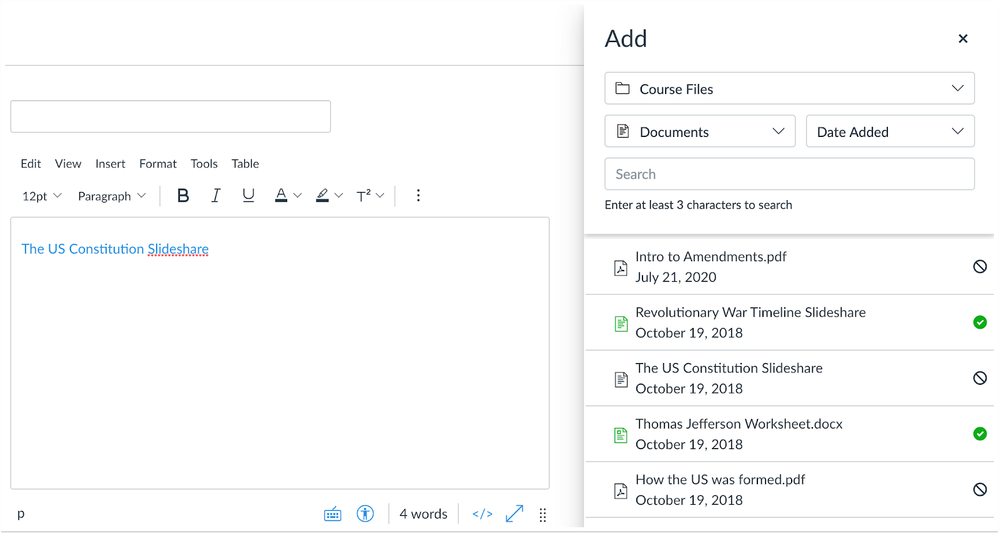
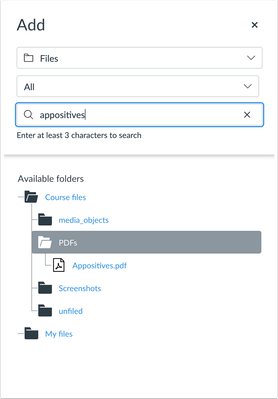
December 2: Improved sidebar and search functionality (instructors and students)
December 12- When using the rich content editor to add links, images, documents, or media through the sidebar, you now have the ability to search for the item you want to deploy.
Additionally, you now have the ability to deploy multiple links and user files (as well as group or course files, when applicable), as those can be added to the editor without having to continually open the sidebar.
November 25, 2020 (instructors and students)
Machine-generated captions automatically available on newly uploaded/recorded media in Kaltura
To improve accessibility, all content that is either recorded or uploaded to Kaltura will automatically include machine-generated captions. Depending on the size or duration of the media, the captions should appear within 24 hours.
Please note, because these are machine-generated captions, the accuracy will not be 100%. You have the ability to edit and clean up these captions by following How to edit captions
Once Kaltura generates the captions, you have the ability to display them as captions within the media player or as a transcript below the player.
September 19, 2020 (instructors and students)
TLS protocol changes impacting users on older browsers
As of 09/19/2020, Canvas will no longer support TLS Protocols 1.0 and 1.1. Most users will not be impacted by this change but if you are using an older browser version we recommend viewing What are the browser and computer requirements for Canvas? to make sure you are using a supported internet browser. If you are using an unsupported browser, we recommend upgrading your browser version or switch to a supported browser.
Canvas native media recording tool is being retired tool
As of 09/21/2020 the record media native to Canvas will no longer be available to record new video or audio. Instead, users should use Kaltura.
Instructors: Recording or Adding Lecture Content with Kaltura
Students: Create a Kaltura Video and Add to an Assignment
Any media that was already recorded using the Canvas native recorder will remain viewable in your courses and accessible to the user who recorded it in the Files area of Canvas.
Please contact Online Learning (Submit a Help Request) if you have any questions and we will get back to you during office hours.
August 26, 2020 (instructors and students)
Collapse/Expand modules button
The Modules page displays a Collapse All button, which collapses all modules in the page. When all modules are collapsed, the button changes to an Expand All button, and allows all modules to be expanded.
The button displays as Collapse All if at least one module is expanded in the page.
If a user chooses to collapse or expand one or multiple modules, the Modules page retains the state of each module indefinitely until it is changed by the user.
Direct share modules
Instructors can copy and share an entire module from the Modules page. All content within the module will be included.
Individual module items can also be copied and shared from the Modules
page.
However, only assignments, discussions, pages, and New Quizzes are supported.
Non-supported module items do not include the Copy to or Share To options.
July 27, 2020 (instructors)
Slight change to course display on dashboard
Canvas has segmented the course display into a Published and Unpublished area. Mostly all of your courses will be in a published state and located under the Published Courses header. Your Practice Course can be found in the Unpublished Courses area.
New Kaltura icon added to text box editor
Inserting Kaltura videos into your course just got one step easier. When adding content anywhere that brings up the Text Box Editor (Module Pages, Assignments, Discussions) you will see the Kaltura icon listed as an option on the tool bar (you use to have to click on plug icon).
Update assignment dates from single page
You may have already noticed this feature but we want to make sure it is on everyone's radar:
Step-by-Step directions: Bulk update due dates and availability dates as an instructor?
View a Video: Assignments: Due and Availability Date Bulk Edit
Copy or share content to another course or instructor
You now have the ability to copy an individual multiple items from one course to another, as well as share with another instructor user. For more information, please view How to copy content from another Canvas course.
If you have any questions or concerns about these features Submit a Help Request.